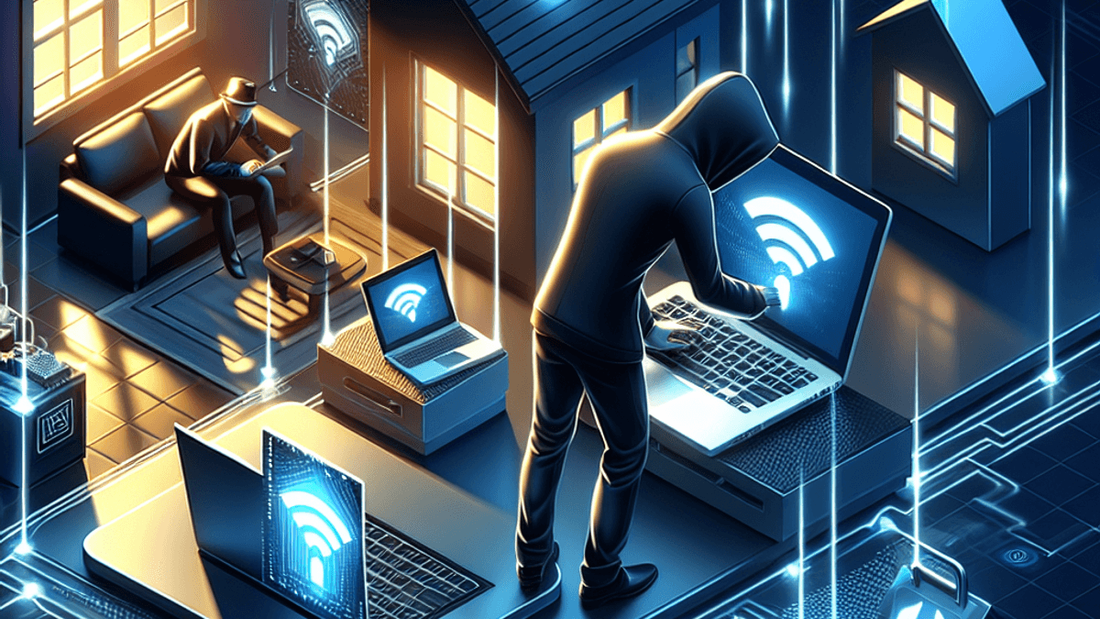
Enterprise breaches grab headlines, but most intrusions start with something mundane like a neighbor guessing your Wi-Fi password. Treating your home like a small branch office keeps laptops, consoles, and smart speakers safe without turning your living room into a data center. The workflow below mirrors what network engineers do in the field, distilled for home hardware.
Why Wi-Fi security still matters
Attackers focus on the easiest path. A poorly configured router offers them a doorway into everything from banking sessions to work VPNs, so hardening the gateway is worth an afternoon.
- Routers ship with default credentials and exposed services that automated scanners can exploit in minutes.
- Legacy encryption modes such as WEP or WPA mixed-mode allow downgrade attacks that leak traffic even when you use strong passwords.
- Internet of Things gadgets rarely receive updates, so isolating them keeps a compromised light bulb from talking to your laptop.
Gather essentials before you tweak settings
A little preparation prevents accidental outages. Collect the information and tools you will need so you can move quickly and roll back safely if required.
- Ethernet-connected laptop with admin access to the router dashboard.
- Password manager entry ready to store new Wi-Fi and admin passphrases.
- Latest firmware file from the router vendor plus a copy of your current configuration.
- Optional: Wi-Fi analyzer app or laptop utility to confirm channel quality after changes.
Step-by-step hardening plan
Step 1 — Lock down the router interface
Log in, change the admin username if possible, and generate a unique passphrase of at least 16 characters. Disable remote administration from the public internet unless you protect it behind a VPN. Apply the newest firmware update and reboot so you start from a patched baseline.
- Schedule automatic updates if the option exists and set them for low-traffic hours.
- Export a backup of your configuration in case the update resets settings.
Step 2 — Modernize wireless encryption
Switch the security mode to WPA3-Personal. If that is unavailable, choose WPA2-AES only and disable TKIP. Rename the SSID so it reveals nothing about you or the router model, then set a calendar reminder to rotate the passphrase every six to twelve months.
- Separate 2.4 GHz and 5 GHz SSIDs so you can diagnose issues per band.
- Turn off the ISP hotspot feature if it broadcasts a secondary SSID you do not control.
Step 3 — Segment critical devices
Create a guest or IoT network for smart devices and enable client isolation. Keep work laptops and personal phones on a primary SSID with stronger firewall rules. If your router supports VLANs, map each network to a different profile so devices cannot see one another directly.
- Label each device in the router dashboard and export the MAC list for audits.
- Use quality-of-service controls to prioritize video calls or cloud backups when bandwidth is scarce.
Step 4 — Disable risky convenience features
Turn off Wi-Fi Protected Setup, Universal Plug and Play, and default port forwarding rules. These shortcuts simplify onboarding but expose the network to brute-force and reflection attacks. If you need remote management, require multi-factor authentication or tunnel in with a VPN first.
- Restrict any diagnostic services (SSH, Telnet) to wired connections only.
- Change the router's default IP range if it conflicts with your work VPN to avoid routing headaches.
Step 5 — Monitor and respond
Enable push alerts for new device connections and failed logins. Review the client list weekly and remove anything unfamiliar. If your router exports logs, send them to a Raspberry Pi or lightweight syslog container so you keep a history for comparisons.
- Use DNS filtering services such as Quad9 or NextDNS to block malicious domains before they reach devices.
- Keep an incident response checklist near the router that explains how to disconnect power, factory reset, and contact your ISP.
Layer on advanced defenses
Network-wide visibility
If you have a spare mini PC, run OPNsense or pfSense as a transparent firewall between your modem and Wi-Fi access point. Enable intrusion detection so you receive alerts about suspicious traffic patterns.
Zero-trust mindset
Use WireGuard, Tailscale, or another mesh VPN to require device-level authentication before anyone reaches your NAS or shared drives. Even if someone guesses the Wi-Fi password, they hit a second wall.
Keep the maintenance rhythm
Monthly quick checks
- Review connected devices, remove stale entries, and confirm guest network isolation still applies.
- Scan for firmware updates or vendor advisories and apply them during a planned window.
- Spot-check DNS filtering reports for false positives or recurring malware attempts.
Annual deep dive
- Rotate Wi-Fi and admin credentials, update password manager entries, and share changes with household admins.
- Test a full backup and restore of the router configuration so you know the process works under pressure.
- Run a quick penetration test using Wireshark or Kali Linux to ensure no stray services are exposed.
Troubleshooting tips
When devices refuse to join
- Confirm legacy hardware supports WPA3. If not, park it on a dedicated WPA2 guest network with internet-only access.
- Disable MAC randomization temporarily on phones so the router recognizes the device while you add it to an allowlist.
- Reduce channel width to 20 MHz in crowded apartments to improve reliability.
When configuration changes go sideways
- Restore the configuration backup you made before firmware updates and reboot.
- Connect by Ethernet with a static IP in the router range if the admin portal stops responding.
- As a last resort, hold the hardware reset button for ten seconds and rebuild from your documented checklist.
Next actions
With hardened credentials, segmented networks, and routine monitoring, your home Wi-Fi becomes far less attractive to opportunistic attackers. Keep iterating as new devices join or family needs change so security never becomes a one-off project.
Which security upgrade from this guide will you tackle first to raise the bar on your home Wi-Fi?